ChatGPT without a VPN in 10 minutes (and installing the native app)
Hello!
I'm sure many Habr readers are familiar with this method, as it's not new. To save you time, I'll just say two words: comss DNS.
Everyone else - welcome under the cut :-)
The gist
If you use DNS servers provided by comss, you will almost certainly get access to chatgpt.com and other neural networks, such as Grok, Gemini and Copilot.
This is possible because instead of the real IP, comss returns the IP of its proxy server.
A full list of neural networks for which this method works is available on this page.
I try to keep the article itself up to date :)
So, two three now four ways to get access using chatgpt.com as an example. The compromise between convenience and security is the third one, as it combines the advantages of the first two.
Now there is also a fourth - if you want to configure all your devices at once!
Method 1: Set the required DNS server addresses
The advantage of this method: access will be opened to all resources at once.
There is also a disadvantage: comss,if it wishes, can redirect not only traffic to neural networks to its proxies (to be fair, nothing prevents other DNS providers from doing the same).
Therefore, we will consider an alternative option a little later.
For now, we need to use the DNS server addresses of comss. You can get them from the official website (and see the instructions if you have any difficulties).
Check access to chatgpt.com. If it doesn't appear, keep in mind that:
-
When changing the DNS on the router, you need to reboot or reconnect to the network.
-
The browser gives preference to the DNS specified in its settings.
A nice bonus is the reduction of ads on the internet :)
Method 2: specify the proxy server IP in the hosts file
We perform a DNS query to comss (I've used the current address at the time of writing):
nslookup chatgpt.com dns.comss.one
In response, we will get:
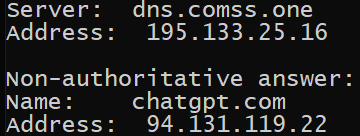
In the bottom Address we see the address of the proxy server through which the request to ChatGPT is made.
If you received "DNS request timed out" or another error
A few days ago, both DNS server IP addresses listed on the site stopped working. However, I found a working one: it is specified for "DNS-over-HTTPS (DoH) – for MikroTik, Keenetic routers" requests. You can also use it to get the proxy server's IP. It is the one used in the article now.
All that's left is to add the following lines to the hosts file:
94.131.119.22 chatgpt.com
94.131.119.22 cdn.oaistatic.com
94.131.119.22 auth.openai.com
94.131.119.22 chat.openai.com
94.131.119.22 ab.chatgpt.com
94.131.119.22 cdn.oaistatic.com
94.131.119.22 webrtc.chatgpt.com
To get access to other neural networks, the steps are even simpler - as a rule, in the hosts file, just one line with the main resource is enough.
If you had access, but it disappeared at some point
Sometimes the proxy server may move to a new IP. In this case, it is enough to repeat all the steps of the section
Done! Only the traffic we need will go through the proxy, and everything else can be entrusted to your usual DNS provider :)
Method 3: DNS resolver
This method can be considered a compromise between security and comfort.
DNS resolvers, unlike the hosts file, allow you to group subdomains into a single line like *.chatgpt.com. This is much easier than adding each of them to the hosts file.
Moreover, a change in the IP of the proxy server will not break our access, and in the program logs, we can monitor our DNS requests and tweak the config if necessary :)
For our simple purpose, YogaDNS - a free and easy-to-configure option, is suitable. Following the link from comss you can find a step-by-step guide, but in the end, it all comes down to simple actions:
-
In Configuration => DNS Servers... add the comss DNS;
-
In Configuration => Rules... create a rule with the following settings:
![]()
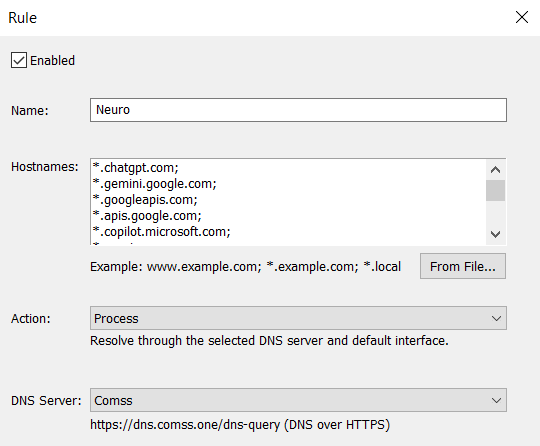
Hostnames
*.chatgpt.com;
*.oaistatic.com;
*.openai.com;
*.gemini.google.com;
*.googleapis.com;
*.apis.google.com;
*.copilot.microsoft.com;
*.ecosia.org;
*.elevenlabs.io;
*.genspark.ai;
*.labs.google;
*.notebooklm.google;
*.designer.microsoft.com;
*.grok.com;
*.x.ai;
*.featureassets.org;
*.anthropic.com;
*.claude.ai
And now we'll talk about installing the ChatGPT app for Windows and Android. Just in case, I'll clarify that on Android a similar DNS setup is also required.
Method 4 (update from 01.2026)
I wrote a second article about a convenient method for global configuration. To implement this method, I wrote a small program.
You won't need to download or run anything, and a video instruction is also included.
I invite you to read it!
Installing the native Windows application
Officially, the application is distributed through the Microsoft Store, but it is not available for download from the Russian Federation - we'll deal with that now.
1) Go to the official ChatGPT app page in the Microsoft Store and copy the link.
2) Now you need to find a service that will provide an installation file from this link. You can search for one yourself if you wish, but I use https://store.rg-adguard.net/. After feeding it the link, you get something like this:
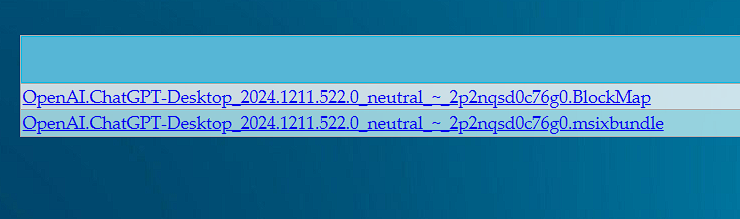
3) .msixbundle - this is our installation file. Download it, run it - Microsoft Store will install it. On the first launch, ChatGPT will prompt you to log in to your account by redirecting you to the browser.
There is an optional step left for those who configured access via the hosts file:
Currently, by default, the application on Windows 10 is only available with a subscription. But the application makes the access decision using an endpoint for sending logs: http-intake.logs.datadoghq.com.
Apparently, after reading the log that the application is being used without a subscription, the server sends a command to block it in response. Therefore, we have two options:
The first is, similar to other resources, to direct logging through the comss proxy.
The second is to simply "cut it off" in the hosts file:
0.0.0.0 http-intake.logs.datadoghq.com
Installing the app on Android
Recently, Google gave developers the ability to block the installation of their applications from third-party sources, and OpenAI took advantage of it. Therefore, let's consider options for accessing the .apk from Google Play.
-
Using a VPN, log in to Google Play from another region (before this, you must stop Google Play).
-
Change the region of your account. It's also better to do this under a VPN of the region you are changing to, in order to reduce the risk of questions from Google. It's a bit more tedious, but it works for sure and solves the problem once and for all.
That's all! I hope it was helpful :-)






-
Кому принадлежит Gemini?
-
Как работает Gemini?
-
Является ли Gemini точным?
-
Может ли Gemini помочь с конкретными задачами или вопросами?
-
Является ли Gemini бесплатным сервисом?
-
Можно ли использовать Gemini на мобильных устройствах?
-
Доступен ли Gemini на разных языках?
-
Как начать работу с Gemini?
Войти в Gemini: быстрый и безопасный доступ к вашему ИИ-помощнику
- Исследуйте возможности Gemini, передового ИИ от Google, созданного для преобразования вашей работы и творчества.
Что такое Gemini
- Gemini — это революционная разработка в области искусственного интеллекта, созданная компанией Google. Этот многофункциональный ИИ-помощник
Регистрация Gemini в России: Полное Руководство
- Gemini — это многофункциональный искусственный интеллект, способный генерировать тексты, переводить языки, писать код, анализировать данные и многое